The Excel Toolbar can be uninstalled from the control similarly as any other program. Open control panel i.e. click windows button () from keyboard and type “control panel”. The Control Panel icon should be now visible. Click the icon to start the Control Panel and select Programs and Features as shown in Figure 29.
Control Panel, Program and Features.
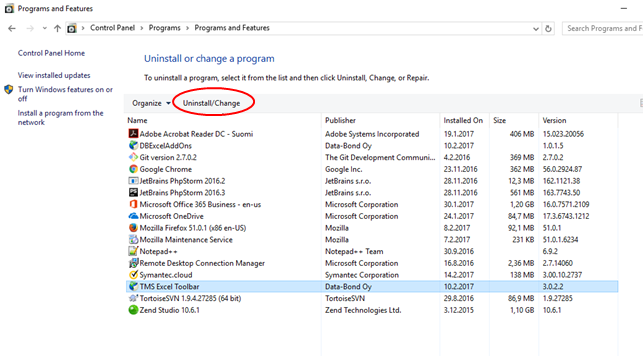
That opens the list of installed programs and features. Select TMS Excel Toolbar that should be visible in the list. After that click on uninstall/change. If Excel is currently running on the PC, a warning dialogue, Figure 31, is shown.
Program and Features list dialogue.
Excel running warning dialogue.
At this point all the unsaved work should be saved in Excel and the Excel should be closed. Then either Yes or No should be selected from the dialogue. Selecting Yes will restart the Excel after uninstallation is completed.
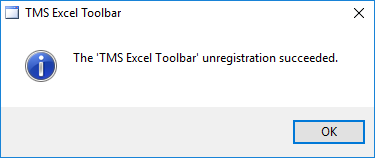
Clicking OK from the TMS Excel Toolbar maintenance dialogue will remove the Excel Toolbar. Finally, the unregistration dialogue, Figure 33, is shown after uninstallation is completed.