1.1 First time installation
Prerequisites for installation:
1. Excel 2007 or newer is installed
2. Your corporate email address is used for registration
3. Registration is done from your corporate network.
4. It is also good practice to close Excel before installation
5. Click link provided by us (email).
Application install dialogue.
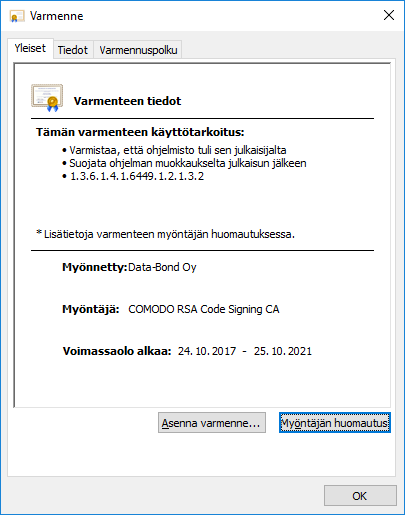
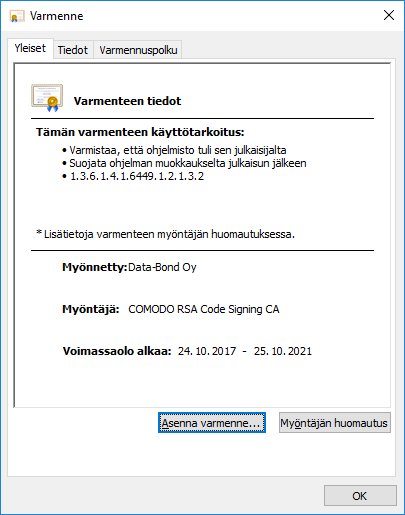
If Publisher is Data-Bond Oy you can add Certificate to avoid possible security issues later on by clicking Publisher name: Data-Bond Oy
Install Certificate dialogue.
Click on Install Certificate… to open the Certificate Import wizard.
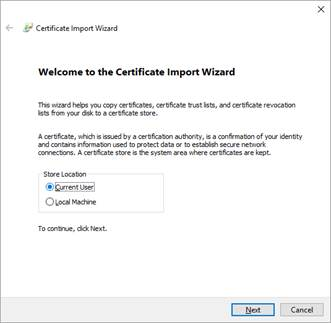
Certificate Import wizard.
For Store Location select Current User and click Next.
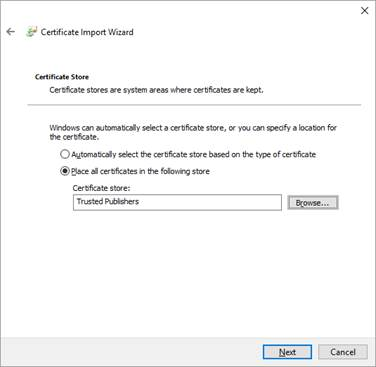
Certificate Import wizard 2.
Select Place all certificates in the following store and use Browse button to select Trusted Publishers to Certificate Store field. Click OK à Next à Finish
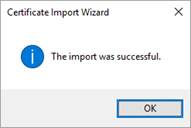
Certificate Import wizard status dialogue.
Click OK to continue.
Install Certificate dialogue.
Click OK to close the Install certificate dialogue, Figure 6. Continue the installation by clicking Install on the Application Install dialogue, Figure 7
Application install dialogue.
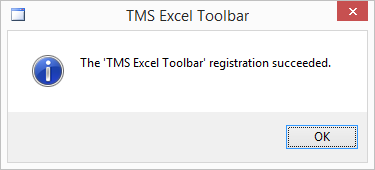
Registration successful dialogue.
Click OK to finish the installation.
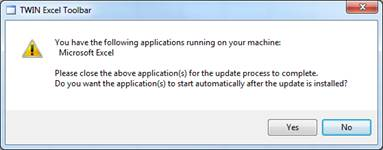
Excel running dialogue.
NOTE: If Excel was not closed before installation a dialogue in Figure 9 will be shown.
Click ‘YES’ and Excel will be started automatically after update.
Close Excel if the dialogue is shown.
When Excel is started, new version is installed and ready for use